Showing posts with label Windows Tools. Show all posts

August 30, 2017

How To Edit PDF Files On A Windows OS?

More than 12 billion users work with the PDF files on a daily basis, and it is mostly used for reading/downloading eBooks, making/publishing online brochures and other online literature. If a user wants to read or view a particular PDF file, then it's very easy. There are so many free & paid software programs available in the market to view/read PDF files. Adobe Reader, being a free software, is the best out of all applications to view/read PDF files.
Reading/Viewing PDF file is not a major issue, but editing and extracting text is. PDF readers don’t allow editing PDF files due to the restrictions assigned to them. So in this post I want to share my personal experience with some the applications using which you will able to edit the document.

Two Different Methods To Edit a PDF File:

  1. Using the Software.
  2. Convert the file in MS Word and edit it.

Able Word Software: Word Processor and PDF Editor:

Able Word is a very capable word processing tool that can read and edit most popular document formats. It supports image formatting, header & footer, tables, spell checking and print preview. This program can read and edit MS Word (.doc, .docx), Rich Text (txt), Adobe PDF (pdf), Plan Text (txt) and HTML (html, htm). Best of all, it’s free and doesn’t leave any watermark on your files.

Steps to Edit:
  1. Download the software: http://www.ableword.net/downloads.html, then install and open it.
  2. Click on Open button to open PDF file.
  3. Here you can see the document is now editable:
  4. You can also change the location of the image by dragging it:
  5. After editing the document, click on Save button if you want to overwrite the same file or you can also choose Save As button if you want to save the file in a different location. You can choose this to save the file in another format:

Edit PDF files with Inkscape

Inkscape is an open source graphic editor, it’s capabilities are similar to CorelDraw, Illustrators or Xara X, using the W3C standard Scalable Vector Graphics (SVG) file format. The newest version of Inkscape can now directly import PDF files and comes with an improved PDF export option. Thus, Inkscape is an easy open source tool for editing and creating PDF files.
Steps:
  1. Download the software from here http://inkscape.org/, and then install and open it;
  2. In top menu, click on File >> Open, browse the document and click on the Open button;
  3. Here you will see 2 options while opening the document. Choose it as per your need and click on OK button:
  4. Select an object. You can drag and move it;
  5. To edit a document, click on A button on the right hand side menu and choose the text that you want to edit:
  6. You can also edit the text style, choose the options from top sub menu:
  7. After editing the document, click on File >> Save button. If you want to save the document in other formats, choose Save As and select the file type and proceed.
By following the above steps you will be able to edit the PDF file without converting or spending money by purchasing any tool.

Convert the PDF File into MS Word and Edit:

To convert the PDF file into MS Word you don’t need to download any OCR software. We have described about Able Word in our article, this software is also a good option to convert the file in MS Word. Open the document and choose Save As option to convert the file. Converting quality of the tool is excellent, also it can extract text, images, format, table, etc.

Tool To Convert Files Into Word Format:

PDF Burger – Online PDF to Word Converter
In our article How To Convert Multiple Image Files To PDF?, I have already defined about PDF Burger features. The tool has many features and it’s a very popular in the online market.
Steps to Convert file:
  1. Visit http://pdfburger.com/pdf-to-word, click on Select file button and choose the document;
  2. Now click on the Start button to upload the file, or if you want to add more file, then click on the Add Files button:
  3. It will take a few minutes to upload and convert the document;
  4. Just when your file gets converted, you can download the file by clicking on the Download button:
After converting the document you will be able to edit the file in MS Word. Just open the document and change the font, style, text, image, etc., as per your need. If you want to convert the MS Word file into PDF, then you can try using Google Drive. It is also a good option, as well as, its a free online tool. Just upload the document, open it and choose .pdf file in the Save As option.
Conclusion: The above tools and steps are only for Windows users. However, PDF Burger and Google Drive can be accessed by MAC OS users too.

September 27, 2014

PDF File Opening Errors & Solutions for Windows OS Users

We have already discussed about many errors regarding PDF files, like: recovery, password protection, converting files to other formats, etc. Today I am going to explain about the most common errors of PDF files when tried to open. You may have already seen these types of errors before.


Sometimes, you must have faced problems with a PDF file which doesn’t open with Adobe Reader in Windows OS, but some files can be opened. Below, I have described some of the most common errors while opening PDF files on Windows OS:

1. “There was an error opening this document. Access denied”

Symptom: The error, mostly comes in Adobe Reader v10.1. The issue was fixed in the v10.1.


Resolution: This error was resolved in v10.1 and the current version is 11. The best solution to resolve this error is to update Adobe Reader.


Step by Step Solution:

I. Open Adobe Acrobat Reader XI
II. Go to Edit >> Preferences…
III. Click on “Security (Enhanced)” on the Left side panel
IV. Uncheck “Enable Enhanced Security”
V. Click Yes in the prompted dialog box
VI. Then click OK to save the changes and exit Adobe Acrobat XI.

2. “The Adobe Acrobat/Reader that is running cannot be used to view PDF files in a web browser”

Issue: Sometimes you may have seen the following error message "The Adobe Acrobat/Reader that is running cannot be used to view PDF files in a web browser. Adobe Acrobat or Reader version 8 / 9 is required. Please exit and try again." while viewing a PDF file in a browser.


Reason: This error can appear when the folder, which contains Adobe Reader or Adobe Acrobat, or one of its folder or sub-folder has been; renamed or moved, or Adobe Acrobat or Reader has otherwise become confused which exact application to use as a helping application within the browser.


Solutions


Solution 1: Repair the Adobe Acrobat or Reader installation.


Repair the current installation by following one of the below steps:


• To Repair Adobe Acrobat or Reader Go to Help >> Repair Acrobat Installation.

OR
• Go to the Windows Add/Remove Control Panel, choose Adobe Acrobat or Reader and select Change.


In both the above cases, the setup wizard will allow you to repair the current installed Acrobat/Reader application.


Solution 2: Make sure all previous versions of Adobe Acrobat and Adobe Reader are removed from your PC.


If you have installed any previous version of Adobe Acrobat or Acrobat on your system, then remove it from your PC. After that, download & reinstall the Acrobat.


Make sure you must have admin privileges to complete these steps.


• Do one of the following below, depending on the version of Windows:
• (Windows 7) Go to >> Start >> Control Panel >> Programs >> Programs And Features.

• (Windows Vista) Go to >> Control Panel >> Programs > Programs And Features.
• (Windows XP) Go to >> Start >> Control Panel, and double-click on Add Or Remove Programs.
1. Select Adobe Acrobat or Reader, and click the option to remove or uninstall the program.
2. Repeat the steps for all installed versions of the software.
3. Restart your computer and reinstall Adobe Acrobat or Reader.

Conclusion: Above, I have mentioned 2 of the most common errors which take place while opening PDF documents. Share your error if you found any and I will write on that topic.

August 9, 2014

4 Best Ways to Compress PDF Files On Windows OS

In this blog we are going to introduce the ways that will help you compress PDF files on a Windows OS. Windows is the most trustworthy and easy to use Operating System in the world, and PDF document is the most secure and trustworthy open source document format present.

PDF is the standard document format that supports every OS that is available currently. Taking benefit of the password protection feature offered in PDFs, users use two types of password for assigning security in PDF files i.e. ‘Owner Level’ & ‘User Level’. Both options make PDF documents more secured & preferred for legal or other confidential purposes. IT Professionals also proved that PDF is an ultimate document format for easy use & also offers storage of different forms of data content; documents, graphics, charts, and forms. Users saving their documents as high quality images, charts, heavy graphics in PDF tend to experience large sized documents and also the probability of corruption. So it would be better to compress such heavy sized documents using free or low cost tools available online.

Compressing a PDF File Using Online Tool

You have to search on net through different search engines by using some keywords like “online tool for PDF compressions / free tool to perform PDF compression or tools to compress PDF online”. Afterwards, ensure that the tool you are preferring to perform the task, is free.

I will provide you the reference of some online tools which will help you compress PDF files very easily.

NEEVIA

http://convert.neevia.com/pdfcompress/

Neevia Online PDF compression tool makes it possible for anyone to reduce the size of large PDF documents without the need of installing special software or hampering its contents.

1. Search online


2. Upload and compress


3. Download (Refer the Screenshot Given Below)


SMALL PDF

http://smallpdf.com/compress-pdf

Compress PDF - Reduce the size of your PDF online. This app compresses your PDF doc on the cloud for free to a perfect size that is still in a good quality.
1. Drop the PDF in the provided area stating: ‘Drop PDF Here’


2. Upload the PDF file.


3. Download the output PDF file.


Compressing a PDF Using Adobe Acrobat’s Save Feature

Adobe Acrobat is the most preferred utility which is used for PDF document. That’s because it creates PDF document.

1. Open the document on Adobe Acrobat Professional.


2. Click on File → Save As → Reduced Size PDF. Select the version of compatibility needed. If you can ensure that all users will be using version Adobe Acrobat X or later, the file will be further compressed.


Compressing a PDF Using PDFWARE Toolbox

PDFWARE Toolbox is a utility that is made to perform PDF management tasks like compression. (Powered By SysTools)

1. Visit the PDFWARE official website and Download PDFWARE Toolbox.
2. Install and start - Click on “Compress” this will allow you to compress the PDF.


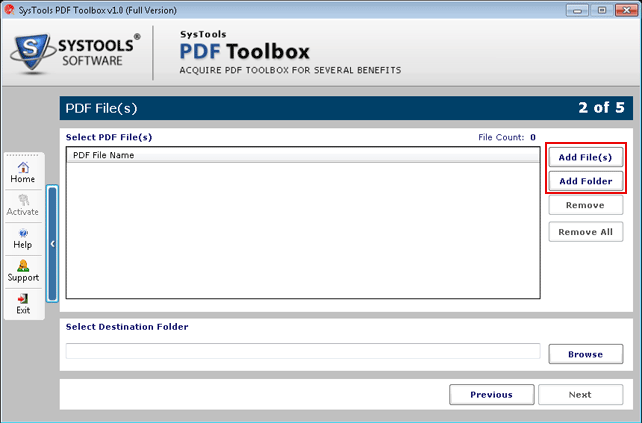
3. Select the PDF file by clicking “Add File(s) or Add Folder”


4. Select and open the files that you want to compress from the browser window.


5. Now the software will show all the PDF files that you had selected.


6. Select the destination path, where your output will get saved.


7. After performing the above mentioned process, select the “NEXT” Button


8. Options for Compression: Enter the details asked for.


9. Uncheck the Compress option, to get the high quality Images.


10. Click on “Advance Setting” to get more options.


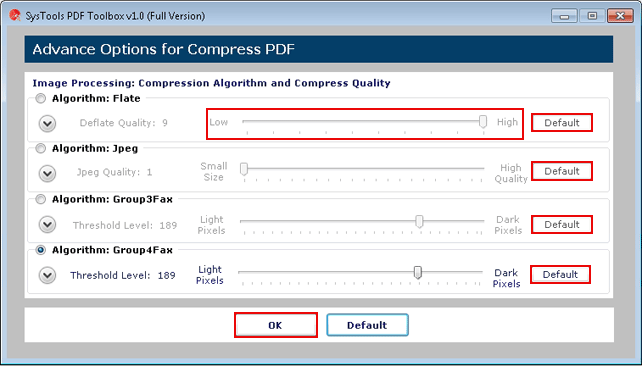
11. After clicking on "Advance Settings" option, a dialog box for advance settings option will appear as follows:


12. Choose image compression options.


13. Default Button will reset all the values to default value. Click OK to confirm the values, which you have selected.


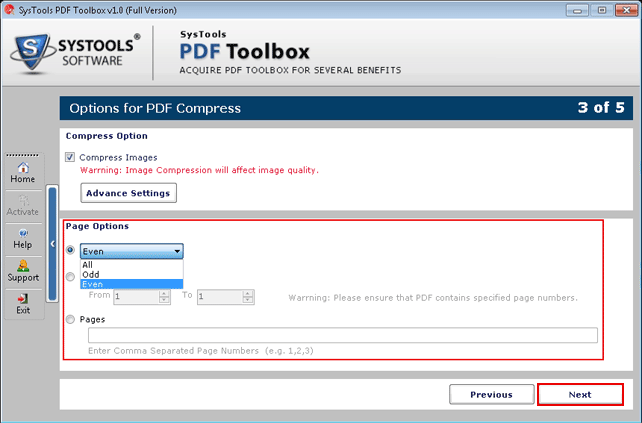
14. Page Options:

  • Select Pages on which Operations are to be performed.
  • Only choose the page numbers that you want to be processed.
  • Select First Radio Button, and select either of the option All, Odd, Even.
  • Second Radio Button: Mention page range by selecting the starting page number and end page number.
  • Select Third Radio Button for specifying the page numbers. Mention page numbers separated by comma. After this, click on "Next" button to continue.


15.  The software will show the summary page. Now Click on "Start" button to begin the process.


16. On completing the process, software will display confirmation on screen.


Compressing a PDF Using Google Drive

1. Open Google drive with any “Gmail” account.
2. Upload the PDF file on Google Drive by clicking on the create button given on the left side of the screen.


3. Click on the PDF file which is Uploaded on Google Drive.


4. Then Click on the print option give on top of the screen.


After reading this blog, I hope that you can easily compress your crucial PDF without compromising the quality or content of the PDF. The above 4 tips offer some free as well as reasonably priced solutions. So, lets try and get the best of advantages from these tips and “Thank You For Visiting PDF-Tips”.