Showing posts with label PDF Tools. Show all posts

May 26, 2015

PDFWARE PDF Tool Box – Product Review

PDF Tool Box is genuinely a toolbox as it offers multiple tools in single software. These are PDF file processing tools and can be considered as a boon for those who need data from PDF files. Software allows you to perform some arbitrary actions on the PDF files and has some very advantageous factors which can benefit you at personal and professional front. The wide usage of portable document format files makes the software more desirable as this file format is used for many purposes. Software will help you to take out information from these files in a secured manner.

It allows you to perform many tasks on the PDF file like; reducing its size, extracting text and images, and conversion of PDF to PDF/A. Every step included to attain these requirements is simple and can be handled by a novice user as well.

Setup And Interface:

PDF Tool Box comes in full and demo version. It is recommended to download the demo version first because it completely depends upon you how you will utilize software and hence it is better to judge it yourself. Download is available on the main page of software although it is difficult to search amongst all the range of software but they have made a search box available. You can search for PDF toolbox here. Once the main page of software is opened you can hit the “Download” button directly and download demo trial version which is absolutely free. For purchase you will have to go to “Purchase” option and contact tech-support.

Talking about the interface it is very simple to be used and no confusion occurs even if you are using the software for the first time. Necessary tabs are provided and it easy to use them all.

Execution of Software:

  • Launch the PDF Tool Box software and a window will open. It will display all the options which can be performed by the tool.
  • These are the four operations which can be applied on the PDF are;
    • Compress
    • Convert PDF to PDF/A
    • Extract Images
    • Extract Text
  • Choose the operation you want to perform and then load the PDF file.
  • Provide the destination for saving the output.
  • Give the necessary options to modify the task.
  • And hit start. The processing will be done and the output will be saved to the destined location.
  • Demo version will apply some watermarks on the PDFs, images or text files.

Features and Application Threads

  • Compress: This option lets you compress PDF file, you can load PDF file with large file size and software will reduce its file size. Modified options for this compression can also be applied like compressing images however this will badly affect the quality of images in PDF.
  • Convert PDF/A: You can convert the mode of PDF file to PDF/A using this option. Choose this option and then load your PDF file.
  • Extract Images: This option lets you extract the images from the PDF file and saves them in various image file formats like; JPEG, TIFF, etc. Advance settings also let you manage the size of the images to be extracted.
  • Extract Text: This option can be very useful if you want to process some important text information from the PDF file. The output comes out to be a text file with the extracted information.
  • You can perform the task on some pages of the PDF file as per your selection.
  • Software hardly takes time to process the files but it can take time if you load many files at once.
  • Program will not affect other programs running on the same machine and happens to be secured enough to try out.

The Offerings and Downfalls:

The most amazing thing about this PDF Tool Box is it works well with user/owner password protected files. You just need to put the user password while processing of the tool and the software will do its work. So this tool makes it possible to extract data from an owner protected PDF as well which is otherwise not possible to copy or extract details.

You get best out of very little cost and performance of software is commendable. The utility of this tool is widespread because many users are associated with PDF file format.

The only thing which is missing is; you cannot process two options at same time. If you want to extract images and text both you will have to go through whole process twice. This is not a drawback of software but still there is room for improvement. I would rate this software 8.5 out of 10 with some improvement it can be 10 out of 10 for sure.

February 4, 2015

Adobe PDF Password Types and Ways To Remove Them

Password protection gives a sense of contentment that the system and the files saved in it is secured from any kind of unauthorized access. The idea of adding a security code to open a file has been popular from a long time and most of the applications offer this option of password protection. But Adobe Acrobat is a little different from other in terms of providing security features for the PDF file. Lets us know how?


#1: Adding Local Restriction to the PDF File Content

This is known as owner password for PDF. Here, the owner of the file allows others to view the contents of PDF file but restricts to copy, edit, print, or extract the data. This way, the data can be read or referred by others and by no way it can be misused. This quality of PDF file is considered very helpful in exchanging information at enterprise level, for internet marketing, to ensure safety of intellectual property etc. Let us understand it by a real time example. You might refer to Google Books online. Ever noticed that you are restricted to copy its contents, edit it, print it but at the same time view entire data saved in it. This is because the PDF file is owner password protected.


#2: Adding Open Document Restriction for PDF File

This is something you must be aware about. Just like any other application, you have to enter the security code to open the PDF file. It is called User Password for PDF File. It has its own advantages when the data saved in PDF is confidential and the owner does not want to allow anybody to read its contents.


To understand this by an example, just check out a mobile or credit card bill that you receive through email. It is sent in a PDF file and you will notice that you cannot open it without entering the security code and even cannot make any changes to it. This means the file has owner and user password set to it. This ensures that only the person with access to security code can open it but no can edit it.


The best part of setting a PDF file with open document password is they cannot be unlocked with password recovery tools. Even after applying brute force, it is quite difficult to unlock a PDF that has this security set on it.


However, there are scenarios when the password set to control file access for other creates troubles for the file owner itself. This is when the requirement for solution arises that can help to unlock PDF file or remove restrictions from it. In the later part, we will discuss some techniques that can be used to remove password from Adobe PDF file.


How to Unlock PDF File Having Owner and User Password?

#1: When it comes to unlocking a PDF that has local restrictions like copy, modify, print set to it, the idea of using online services can be adopted. There are a number of online PDF unlocking services that will give solution remove permissions from the file.


Some are effective while some are not. You have to share their PDF file data with them, agree to their terms and conditions, and yes you have to add a PDF file less than the defined size. This way, you can avail free service to unlock the Adobe file.


#2: Another is the user password. As we discussed above, you cannot normally open a PDF file that prompts for password. In such a scenario, you have to adopt a third party solution that can help you out to eliminate open document security from PDF file.


#3: There are paid solutions that can help to unlock PDF file set with owner and user password. The other reason to invest in them is these tools keep the source PDF file untouched and generate a new PDF file that is free from password. One such name that can be recommended for investment is PDF Unlocker software. This tool makes PDF file free from both master and open document restriction.


If Adobe Acrobat available, then it is possible to remove both types of security from PDF file but for that the passwords that are being set to the files should be known. In case you forgot the password, then the suggestions shared here can be helpful.

September 20, 2014

Steps to Merge Multiple PDF Files and Also Compress Its Size

Sometimes you may have a number of different PDF documents that you want to merge for easy sharing purposes. Adobe Acrobat is the best option to do it, but the price of the software is about $449 (€448). So a normal user can’t afford this, however, the Adobe Reader remains a free software to view PDF files. In this post I will share some free and affordable tools to Merge & Compress PDF files.


Some reasons that users feel the need to merge and compress PDF files:

1. You can merge multiple PDF files and share them with others in one click, instead of adding each file one by one;
2. Easy to share on the websites with others;
3. Easy to carry in portable external storage devices after compression of size.

In the section below, you will read the steps on how to merge multiple PDF files and how to compress its size. So lets get started:

1. PDF PI – Online Conversion Tool

Visit http://www.pdfpi.com/home/combine, and click on Add files… button to upload the document (you can also hold the Ctrl button and choose multiple files) >> after a short duration you will see the files have been uploaded >> if you want to choose more files then again click on Add file and choose more documents >> now click on Combine into one PDF button to start the process of merging PDFs.


Here you can see two download buttons, click on the Download button if you want to download the file directly else fill in your email address in the box provided and click on Email me the download link button.


About PDF PI: PDF PI is a very good website for the PDF users. It allows users to Combine, Split & add stamp in PDF files. Also, you can download its Google Chrome extension from here: https://chrome.google.com/webstore/detail/pdfpi/mcbaeddpndondhghkhdppebndnbcepdo.


NOTE: File size limit on the website is up to 20 MB.


2. PDFWARE PDF Split & Merge – Premium Software

Go to PDFWARE PDF Split & Merge Software, click on the Download button which is given on the bottom right of the page >> after successful downloading, Install, and Run the software >> Choose Merge option, click on Add Files or Add Folder button accordingly.


Now click on the Process button to start the procedure of merging files >> choose the destination folder where you want to save the file and click on Ok button.

About PDFWARE PDF Split & Merge: The software is a very efficient tool to Split PDF file in multiple documents & merge multiple PDF files into one.

Some Of Its Features: A user can merge multiple numbers of files into one, split PDF file by using odd and even page modes, merge files in quickly with data accuracy and compatibility with almost all Adobe Reader versions up to 11.


3. PDFWARE PDF Toolbox – Tool to Compress PDF file
Open PDFWARE PDF Toolbox, download the software by clicking on Download button >> Install, and Run the software >> Here you will see four options as Compress, Convert PDF/A, Extract Images & Extract Text >> Click on the compress button to start the process:
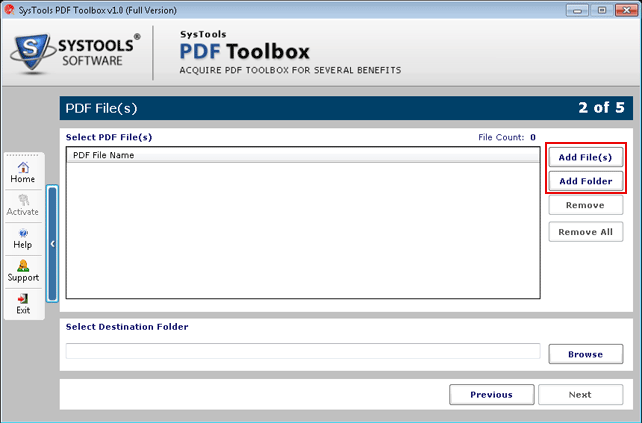
• Choose the file(s) or folder by clicking on Add File (s) or Add Folder:

• Select the Destination Folder by clicking on the Browse button at the bottom of the screen:

• Now click on the Next button;
• Here you can edit and change the file settings, after that click on Next button to follow further steps:

• Now click on the Start button to start compressing the file:

About The PDFWARE PDF Toolbox: The tool is one of the best commercial choices to make for; compressing PDF file size, extracting text and images from PDF files, and converting PDF to PDF/A file. It will help you reduce the large file size, without changing the data in your PDF file.


Conclusion: PDF PI online tool is a great option for merging multiple files online. Also, there is no file size limit in PDFWARE tools, so you can also choose PDFWARE Tools.

August 9, 2014

4 Best Ways to Compress PDF Files On Windows OS

In this blog we are going to introduce the ways that will help you compress PDF files on a Windows OS. Windows is the most trustworthy and easy to use Operating System in the world, and PDF document is the most secure and trustworthy open source document format present.

PDF is the standard document format that supports every OS that is available currently. Taking benefit of the password protection feature offered in PDFs, users use two types of password for assigning security in PDF files i.e. ‘Owner Level’ & ‘User Level’. Both options make PDF documents more secured & preferred for legal or other confidential purposes. IT Professionals also proved that PDF is an ultimate document format for easy use & also offers storage of different forms of data content; documents, graphics, charts, and forms. Users saving their documents as high quality images, charts, heavy graphics in PDF tend to experience large sized documents and also the probability of corruption. So it would be better to compress such heavy sized documents using free or low cost tools available online.

Compressing a PDF File Using Online Tool

You have to search on net through different search engines by using some keywords like “online tool for PDF compressions / free tool to perform PDF compression or tools to compress PDF online”. Afterwards, ensure that the tool you are preferring to perform the task, is free.

I will provide you the reference of some online tools which will help you compress PDF files very easily.

NEEVIA

http://convert.neevia.com/pdfcompress/

Neevia Online PDF compression tool makes it possible for anyone to reduce the size of large PDF documents without the need of installing special software or hampering its contents.

1. Search online


2. Upload and compress


3. Download (Refer the Screenshot Given Below)


SMALL PDF

http://smallpdf.com/compress-pdf

Compress PDF - Reduce the size of your PDF online. This app compresses your PDF doc on the cloud for free to a perfect size that is still in a good quality.
1. Drop the PDF in the provided area stating: ‘Drop PDF Here’


2. Upload the PDF file.


3. Download the output PDF file.


Compressing a PDF Using Adobe Acrobat’s Save Feature

Adobe Acrobat is the most preferred utility which is used for PDF document. That’s because it creates PDF document.

1. Open the document on Adobe Acrobat Professional.


2. Click on File → Save As → Reduced Size PDF. Select the version of compatibility needed. If you can ensure that all users will be using version Adobe Acrobat X or later, the file will be further compressed.


Compressing a PDF Using PDFWARE Toolbox

PDFWARE Toolbox is a utility that is made to perform PDF management tasks like compression. (Powered By SysTools)

1. Visit the PDFWARE official website and Download PDFWARE Toolbox.
2. Install and start - Click on “Compress” this will allow you to compress the PDF.


3. Select the PDF file by clicking “Add File(s) or Add Folder”


4. Select and open the files that you want to compress from the browser window.


5. Now the software will show all the PDF files that you had selected.


6. Select the destination path, where your output will get saved.


7. After performing the above mentioned process, select the “NEXT” Button


8. Options for Compression: Enter the details asked for.


9. Uncheck the Compress option, to get the high quality Images.


10. Click on “Advance Setting” to get more options.


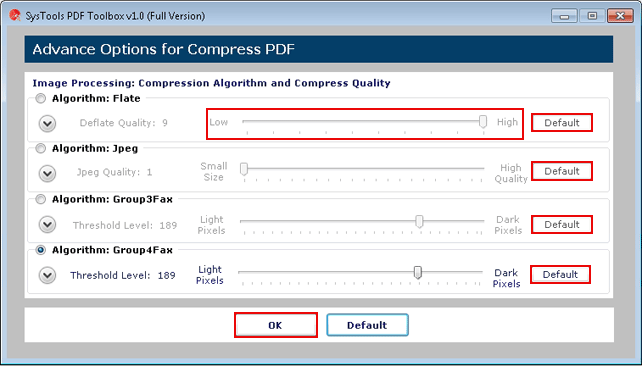
11. After clicking on "Advance Settings" option, a dialog box for advance settings option will appear as follows:


12. Choose image compression options.


13. Default Button will reset all the values to default value. Click OK to confirm the values, which you have selected.


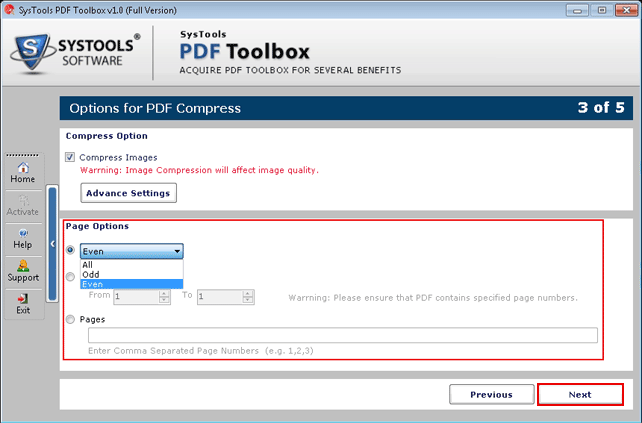
14. Page Options:

  • Select Pages on which Operations are to be performed.
  • Only choose the page numbers that you want to be processed.
  • Select First Radio Button, and select either of the option All, Odd, Even.
  • Second Radio Button: Mention page range by selecting the starting page number and end page number.
  • Select Third Radio Button for specifying the page numbers. Mention page numbers separated by comma. After this, click on "Next" button to continue.


15.  The software will show the summary page. Now Click on "Start" button to begin the process.


16. On completing the process, software will display confirmation on screen.


Compressing a PDF Using Google Drive

1. Open Google drive with any “Gmail” account.
2. Upload the PDF file on Google Drive by clicking on the create button given on the left side of the screen.


3. Click on the PDF file which is Uploaded on Google Drive.


4. Then Click on the print option give on top of the screen.


After reading this blog, I hope that you can easily compress your crucial PDF without compromising the quality or content of the PDF. The above 4 tips offer some free as well as reasonably priced solutions. So, lets try and get the best of advantages from these tips and “Thank You For Visiting PDF-Tips”.

August 7, 2014

How To Convert Multiple Image Files To PDF?

Most of the people face confusion while working with lots of images stored at the same location on their PC. They are habitual of saving all images with similar names & eventually get confused when they need to select a particular one out of them. So it’s very hard to remember & select an image from the computer when they are all named almost similarly. So to solve this issue users can select and export all images into a single PDF file. So now I am going to share with you some reasons & tips to do the same.

Possible Reasons to Convert Image Files to PDF Format


1. Create One File for Multiple Images: By converting images to PDF you can store multiple images (example 1-50) in one PDF file. This will help you in sending multiple images without having to select them all.
2. Get All Images On A Single PDF: This option is the best for those who have lots of images in one place on their computer.
3. Protect Files With Password: Important images that you don’t want to be shared can be protected via conversion into PDF that offers password protection. So, by converting images into PDF file protecting them all in a go becomes easier.
4. Protect Files With Restrictions: In PDF you can add restrictions on copying, editing, or extracting its contents. By this you can save your images from being shared on other websites without restricting its viewing.

Free Online and Desktop Based Ways to Convert Image to PDF


There are two free of cost ways to convert images to PDF. Online and desktop; I have described all the free methods in the below mentioned steps:

1. Online Solutions for Internet Users:

  • Chrome Add-On: Document and Image Converter Toolbox

The tool is developed by Sci2ools, and is a free online document processor offering image conversion. It is capable of converting online images to PDF file and allows saving it on your computer. Apart from this, the tool can also convert PowerPoint (PPT, PPTX), Word (DOC, DOCX), Excel (XLS, XLSX), Postscript (PS).

Steps to Use The Add-On:
1. Install Document and Image Converter Toolbox add-on in your Google Chrome browser.
2. After a successful installation, you will see a W icon in the Add-on bar;


3. Now open any website or page and copy the image URL (for example Pinterest):
4. Click on W icon, then click on i2Img;


5. In Enter Image URL box, paste copied image link and click on Convert button:


6. After a short process of conversion, you will see a Download Link. Click on it to download the image in PDF format:


Add-on Download Link: http://bit.ly/1melrG3
  • Online Tool - PDF Burger

PDF Burger is best multi features online tools website, it has many features likes; Convert All files to PDF, Combine/Merge files to PDF, Web to PDF, PDF to Word, PDF to Images.

Steps to Use PDF Burger:
1. Open pdfburger.com website.
2. There you will see Select files button, click on it:


3. Now browse an image or select multiple images:


4. Selected file(s) will appear now. If you want to add more images, then click on Add files else click on the Start button to start the conversion process.


5. After a short process, converted file will appear at the bottom. Click on download button to download the file.


Website Link: http://pdfburger.com

Online Tool - Free PDF Converter
PDF Converter is a web based tool to convert files online. Some of the basic features of the website are:
PDF Converter: Convert any file format online to PDF like, Word, Excel, PowerPoint, Web Pages, Images, and other files.
PDF to Word: Sometimes when a user doesn’t have MS Office installed on their machine; converting Word to PDF file is the best solution to get access to its data.
Send Converted file Online: There is an option to send the file to any person by filling their email address in the provided email box.

Steps to Convert Images into PDF
1. Open freepdfconvert.com;
2. Now click on Select files to select images:


3. Open single image or select multiple images:


4. After selecting the file, you will see uploading process:


5. After a successful uploading, a download button will appear:


6. Click on download button if you want to download the file on your computer or if you want to save the file in Google Drive then click on down arrow and you will see the Save to Google Docs option. Click on it.


2. Software for Desktop Users:


  • Free JPG To PDF Converter Software

Free JPG to PDF Converter is one of the best desktop tools to convert Image files like JPG, JPEG, GIF, PNG, etc., into PDF without payout any cost paid. It can convert PDF file without Adobe Acrobat installed.

Steps to Use Free JPG to PDF Tool:
1. Download Free JPG to PDF tool from free-jpg-to-pdf.com
2. After downloading, install the software and open it.


3. The Above window will appear when you open the software. Select Adobe PDF and Click on Next Button;
4. A file setting option will appear. Here you can edit Output location, Compression & Paper Size.


5. In the next window click on New Page from file to select image:


6. After selecting the image, the selected image will be displayed. Now click on Next button to convert the image into PDF.


7. After a successful conversion you will see finish message. If you want to convert another file, click on Another else click on Close.


Website Link: http://www.free-jpg-to-pdf.com

PDF Area – Image to PDF Converter Free

Image to PDF Converter Free is an easy-to-use PDF tool that is developed to batch convert image files to PDF document. Just add images to the list, click on the Convert button, and this software will convert them to a PDF document. You can set page size and PDF information, such as title, author, subject, etc. Image to PDF Converter Free is a stand alone software, thus, Adobe Acrobat is NOT necessary.

Steps to Convert Image files into PDF:
1. Open pdfarea.com/Image-to-PDF-Converter-Free.htm and Download the software;
2. After downloading open the software. Check below Screenshot:


3. Click on the add button to add images.
4. After opening the file, if you want to check the image, then click on the View button:


5. Now click on Convert button to start converting images;


6. Select the path where you want to save the file. After converting, the software will show a message stating completion of conversion.

Conclusion: I hope you will able to convert your images into PDF files after reading above steps. It will also help you to share your PDF file using USB/Email/Cloud. The all above software and steps are fully working and I have also tested them before making this post. All software programs are scanned by Virus Total and I didn’t find any virus in any of the tools.